Printing
Meesho label prints too small — check PDF, scaling and driver
Fix small Meesho label prints by matching PDF dimensions, sticker stock and driver settings. A step-by-step print and barcode check.
Written by SellerWala · Editorial method
Updated
Check the PDF page size first, then the viewer scale and the driver’s stock size. A tiny label is often the whole A4 source being shrunk onto a sticker, but margins, orientation and printer apps can also change the result.
Start with three matching dimensions
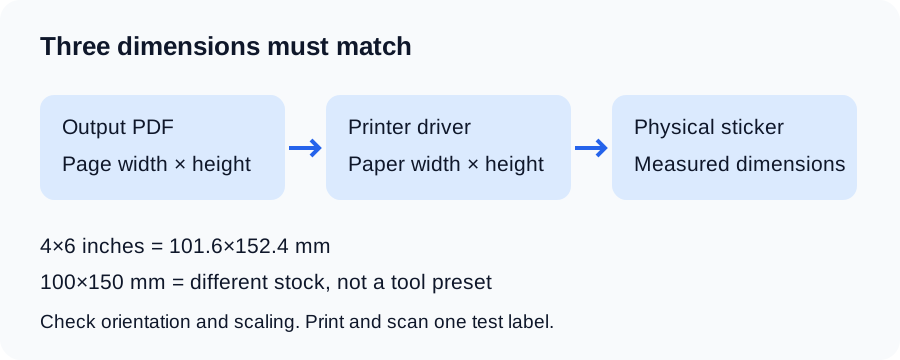
Measure one sticker. Exact 4×6 inches is 101.6×152.4 mm; 100×150 mm stock is different and has no exact preset in the Meesho label cropper. Use stock matching the available inch preset rather than treating the names as interchangeable. A 3×5 inch page is 76.2×127 mm. The size guide has the full table.
Diagnose the symptom
| Symptom | First check | Next check |
|---|---|---|
| Whole label and invoice are tiny | Source PDF still A4 | Crop the invoice before printing |
| Correct crop but small content | Viewer fit / shrink scaling | Driver stock size and margins |
| Sideways or clipped label | Orientation mismatch | PDF size versus physical stock |
| Correct PDF, blank output | Compatible media and loaded side | Driver media mode, printhead, calibration |
| Skipped labels or drifting alignment | Driver paper height | Gap sensor and model-specific calibration |
Change one setting at a time
- Create the PDF at your measured stock size and inspect its page dimensions in a reader.
- Set viewer scaling to actual size / 100%. Turn off fit, shrink and multiple-pages-per-sheet for thermal output.
- Set the driver paper width and height to match. Check the driver’s own preferences, not just the PDF viewer.
- Start with portrait orientation for portrait output. Check the preview before forcing a rotation.
- Remove browser headers and footers. Inspect margins or the printer’s nonprintable area.
- Print one label, read the address and scan its barcode. If it still fails, follow the exact manufacturer’s media and calibration procedure.
Synthetic example: selecting the 4×6-inch PDF preset while a driver is configured for A4 creates a mismatch even though the file has been cropped. Fix that mismatch before changing printer darkness.
When to recreate the PDF
If a barcode is already clipped in the PDF preview, print settings cannot restore it. Check invoice handling, the original source layout and a different output size. The crop walkthrough shows that process. For a readable PDF with poor physical output, use the thermal printer settings guide.
No setting guarantees every barcode will scan. Use one dispatch sample, then inspect a mixed batch before printing all labels.
Sources and verification
Tool behavior and examples checked: . Marketplace policy rates are published only with verified official evidence.
Read next
- PrintingMeesho label size — 4x6, 3x5 or A4, and which to print onWhat size a Meesho shipping label is, why the downloaded file is A4, and which label size to pick for a thermal printer or ordinary A4 paper.
- PrintingHow to print Meesho labels on a thermal printer4x6 and 3x5 settings for TSC, TVS, Rugtek and Honeywell printers — crop the invoice first, print at 100%, and stop wasting label rolls.
- Getting startedMeesho label crop with invoice — keep, remove or save itThree ways to handle the tax invoice when you crop Meesho labels — label only, label with invoice, or labels and invoices as two PDFs — and when to use each.